How to Identify and Fix a Slow WordPress Site: The Complete Guide for Business Owners and Developers
By: the team of experts at WSO
When every second costs you money
Site loading speed is critical to business success. WordPress is a popular system, but it’s easy to lose optimal performance with it. A slow site causes visitors to leave, hurts user experience (UX) and sabotages organic SEO – the core of your digital strategy.
You’ve invested resources in your site, but slow loading cancels out the effort. Google ranks fast sites higher and penalizes slow sites with lower rankings. That drop brings less traffic, fewer leads and lower sales. You need to know why your site is slow, and how to fix it now.
In this article, we’ll dive deep into the failures that make WordPress sites load slowly. We’ll give you precise tools and solutions for diagnosing and immediately treating the problem. We’ll focus on Google’s core metrics, Core Web Vitals, and show you how to turn your site into a fast performance machine.
Diagnosing the problem: advanced testing tools for WordPress
You must diagnose the source of the problem before treating it. WordPress is a modular system; the causes of slowness are complex. Use the right tools to find the bottlenecks.
Google PageSpeed Insights: your SEO compass
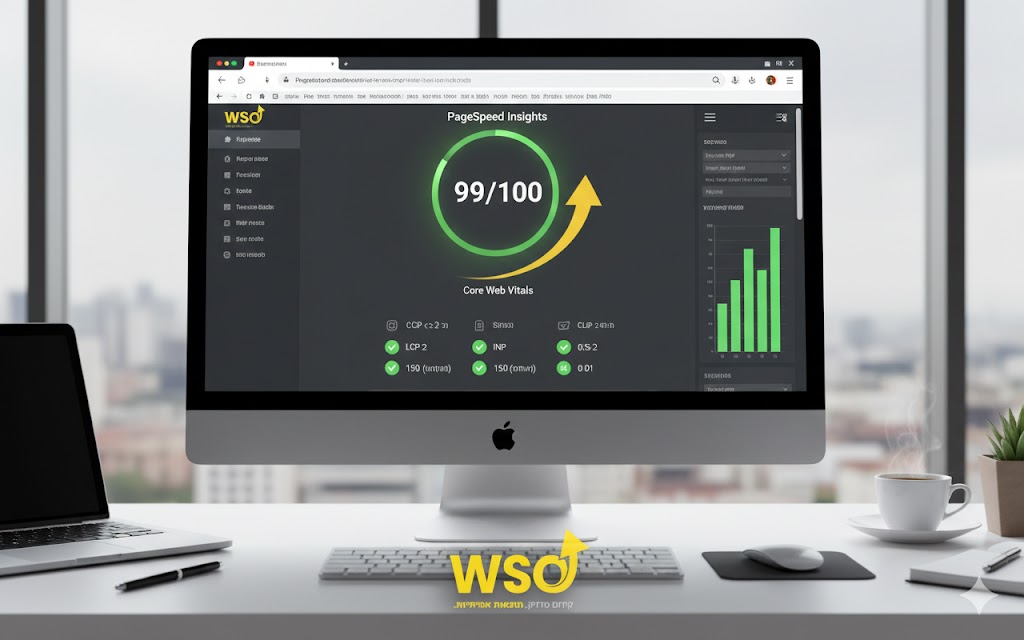
Google’s official tool is an essential starting point. PageSpeed Insights (PSI) analyzes site speed on mobile and desktop. The tool provides a numerical score and detailed recommendations for improvement. The score is based on real data (field data) and lab data.
The tool reflects how Google sees and ranks your site’s speed. It requires you to align with their standards, which are the critical metrics for organic ranking.
A practical step: always start with a PSI test. A poor score (under 50) indicates a lot of work. Focus on understanding the “Opportunities” and “Diagnostics” sections shown in the tool.
Core Web Vitals (CWV): Google’s three core metrics
Core Web Vitals are a set of specific metrics Google has defined for user experience. A WordPress site that doesn’t meet them will struggle to move up organically.
LCP (Largest Contentful Paint): perceived loading time
This metric measures how long it takes for the largest content element on the screen to appear. It’s the metric that best represents the user’s sense of speed.
Example: if your landing page includes a large banner, LCP measures the banner’s loading time until it’s visible.
Google’s target: less than 2.5 seconds.
Solution: optimize images (compression, WebP format). Enable lazy loading for images that aren’t “above the fold”. Improve server speed.
FID (First Input Delay) / INP (Interaction to Next Paint): response time
This metric examines the delay from the user’s first interaction (clicking a button) until the browser starts processing the event. Today it’s measured as INP, which measures the overall delay in the site’s response to interactions.
Example: a visitor clicks an “Add to cart” button. If the site is loaded with running scripts, there will be a short lag before the click is handled.
Google’s target: FID under 100 milliseconds (or INP under 200 milliseconds).
Solution: defer loading non-essential JavaScript. Minify and optimize CSS and JS code. Reduce the load on the browser’s main thread.
CLS (Cumulative Layout Shift): visual stability
This metric measures how much content “jumps” or “moves” while loading. Unexpected layout changes (like an ad pushing text down) hurt user experience and cause mistaken clicks.
Example: you’re reading a paragraph. An image that loads slowly makes all the text move down.
Google’s target: a CLS score below 0.1.
Solution: set explicit heights and widths for all images and visual elements. Avoid injecting dynamic content “above the fold” without reserving space.
The root of the problem: the 4 main causes of slowness in WordPress
Most speed problems in WordPress stem from four factors: the hosting environment, the theme, plugins, and code/assets.
Poor hosting choices – the site’s shaky core
The server the site sits on is the foundation of all performance. Choosing a shared hosting plan that’s too cheap or not optimized for WordPress is a decisive mistake.
A common mistake: overcrowded shared hosting
Shared hosting companies cram thousands of sites onto one server. A site experiencing heavy load affects your loading speed – and there are many companies offering hosting price comparisons that can help with this.
A practical solution: upgrade to managed WordPress hosting, or move to a VPS (virtual private server). These solutions allocate dedicated resources (CPU and RAM) to your site and ensure stability and speed.
An important metric: look for companies providing up-to-date, fast PHP 8.x servers. Make sure they use server-level caching like Varnish or Redis.
Plugin overload and heavy themes
The endless variety of plugins is WordPress’s great advantage, but also the biggest threat to its speed. Every plugin adds CSS and JavaScript code, and extra code slows the site down.
Unnecessary plugins: excess weight on the system
Many plugins perform database operations or put load on the server. “Security” plugins, automatic page accelerators and complex visual plugins are usually the main culprits.
A practical step: perform a plugin audit. Delete or deactivate any plugin that isn’t essential for operation. Look for lightweight alternatives. For example, use a server-level firewall (WAF) instead of heavy security plugins.
Choosing a theme: choose a lightweight, performance-focused theme like GeneratePress, Astra or OceanWP. Complex, feature-packed themes (bloated themes) burden the server and generate unnecessary code.
Failed image optimization – the heaviest element
Images are the main cause of slow LCP and long loading times. An image that looks good on a large monitor can weigh several megabytes. Loading images like that becomes a performance disaster.
A case study: a full-size background image
A client used a 3,000×2,000-pixel banner background image in uncompressed JPEG format, weighing 5MB. Every page load required downloading 5MB for a single image.
A technical solution:
-
Resize: Reduce the image to the actual maximum size at which it’s displayed (for example, 1,920 pixels wide).
-
Compression: Use plugins like Imagify, Smush or ShortPixel to compress images without visible loss of quality.
-
WebP format: Convert images to the innovative WebP format. It’s 25%–50% smaller than JPEG/PNG.
-
Lazy loading: Make sure images that aren’t needed for the initial load load only when the user scrolls down.
A bloated database and inefficient code
The WordPress database (MySQL) contains all the information on the site: posts, comments, settings and temporary data. Over time, it can become large, messy and full of leftovers.
Slow queries and digital junk
Every page load involves database queries. Deactivated plugins leave junk tables that weren’t cleaned up. WordPress’s “revisions” mechanism creates endless versions of every post, which bloats the database.
A practical step:
-
Database cleanup: Use plugins like WP-Optimize to regularly clean temporary tables, delete spam and reduce the number of revisions.
-
Query optimization: Developers can check with debugging tools like Query Monitor. This identifies which queries cause the biggest delays (usually stemming from poorly written code).
-
Preloading: Set up preloading of important internal links (using plugins like FlyingPress). This improves the browsing experience on the site.
Advanced solutions and technical steps for improving Core Web Vitals
Once you’ve found the problem, you need to apply solutions. Dramatically improving a WordPress site’s speed and achieving high CWV scores requires a multi-layered approach.
Essential caching plugins – the main accelerator
Using caching smartly is the most effective step for improving site speed. A good caching plugin lets the server deliver a static (HTML) version of the page instead of rebuilding it. This dramatically reduces the load and the TTFB (time to first byte).
Plugin recommendations: WP Rocket (highly recommended, paid), LiteSpeed Cache (a must for LiteSpeed servers), or WP Fastest Cache.
Critical settings: make sure to enable browser caching (storing files in the visitor’s browser), object caching (for dynamic sites) and cache preloading for important pages.
Minification and aggregation of code
To improve the FID/INP metric and reduce loading time, you need to reduce the size of CSS and JavaScript files and the number of requests to the server.
Minification: removing unnecessary spaces, comments and line breaks from the code.
Aggregation: combining many small code files into one large file. This reduces the number of requests the browser has to send.
Solution: aggregation can cause code conflicts. Use the Defer parsing of JavaScript or Delay JS function (found in advanced caching plugins). This postpones loading non-critical scripts until after the initial load, greatly improving FID/INP.
Using a CDN (content delivery network) – global distribution
A CDN is a network of global servers that stores a copy of the site’s static files (images, CSS/JS code). When a visitor enters the site, the data is retrieved from the server geographically closest to them. This dramatically shortens the distance, reduces TTFB and improves loading speed worldwide.
An illustrative example: your server is in Israel, and a visitor from New York enters the site. The data will be retrieved from a CDN server near New York, instead of “traveling” all the way to Israel.
Recommendations: Cloudflare (free/premium), Amazon CloudFront or KeyCDN. Implementing a CDN correctly is critical for any site targeting a broad audience.
Solving the CLS (cumulative layout shift) problem
CLS usually stems from a lack of clarity about element sizes. The main solution is to make sure the browser knows in advance how much space to reserve for each image or component.
A code solution (for developers): make sure every <img> tag has its width and height parameters defined.
Reserving space for ads: if you use ads (AdSense or others), allocate static space for them with CSS. This prevents them from “pushing” your content after they load.
Summary: the path to a fast, well-ranked WordPress site
Slowness on a WordPress site is a critical barrier to business success and organic SEO. Google treats performance as a ranking factor. Investing in speed optimization is a direct investment in ROI. Improving loading time by a fraction of a second translates directly into a lower bounce rate and a significant increase in conversion rate.
The right diagnosis starts with the Google PageSpeed Insights tool and understanding the Core Web Vitals metrics. The right treatment requires a systemic approach: upgrading to quality managed hosting, and cleaning up and reducing non-essential plugins. Optimize images to the maximum (WebP and lazy loading) and apply advanced caching plugins.
Following the steps detailed here will turn your WordPress site into a fast, reliable and organically promoted digital asset. A fast site builds trust with visitors and signals to Google that your content deserves the top of the search results.
Want to take your site’s performance to the next level? Learn more about advanced SEO solutions, custom website building and managed hosting solutions at WSO.